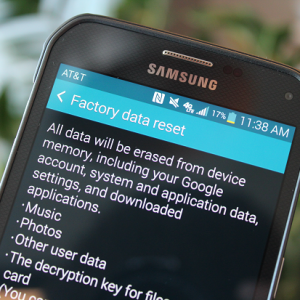
Every Android smartphone owner is sooner or later faced with problems in his work. Over time, the performance of the smartphone can fall, some functions can stop working, or the smartphone is completely refused to load. In addition, there are situations where the user has forgotten the password from his smartphone and does not have the ability to restore it. Or the owner of the smartphone you just need to prepare it for sale. In all these situations, it comes to help reset to the factory settings. Reset Android smartphone to factory settings is a complete cleaning of the smartphone from the actions produced by the user. In the process of reset, all applications, contacts, accounts, multimedia (music, video, photo) will be deleted, and the smartphone will return to the state of "like the box". This article will be discussed about the methods for resetting Android to the factory settings.
How to reset the Android to the factory settings - creating a backup of data
Before resetting Android to the factory settings, it is possible to copy all the necessary data to another device or cloud storage (for example, music, photos, contacts), since they will be removed from the smartphone. Therefore, before reset, make sure that you have saved all the data important for you.

Choosing a way to reset the settings to the factory on the admin
There are three main ways to reset Android to the factory settings: through the settings menu by entering the secret code to reset in the Phone application and via Recovery. If your smartphone is loaded normally and it is possible to go to the settings menu, then the reset method through this menu will be the easiest. This method is described in paragraph 3 of this article. The method of entering the secret code is useful if the smartphone works, but it fails to reset through the settings. The description of this method is in paragraph 4 of this article. And the last way - via Recovery will need you if the smartphone is not loaded. The description of this method is presented in paragraph 5 of this article.

Reset settings to factory on Android through the menu
To reset this method, you must find the "Restore and Reset" section. In this section, there is a "Reset Settings" item (data reset may be called). Choose this item. The system will warn about the loss of all data. Press the "Erase All" button and waiting for the result (usually from 3 to 5 minutes). After resetting the system will boot in the form in which it was when buying a smartphone.

Reset settings to factory on the address by entering the secret code
So, if you can not reset your smartphone through the settings menu, this method should help. To make a reset in this way, you need to go to the "Phone" application, from which calls are made, and to dial one of the secret codes in it:
*#*#7378423#*#*
*#*#7780#*#*
*2767*3855#
After entering the code, the reset settings will start automatically. If the code entered did not work, try another. At least one of them will suit exactly.

Resetting settings to the factory on android via Recovery
This method is most relevant for cases when the smartphone does not load at all or you have forgotten the password from it. So what is Recovery? Recovery (Recovery Mode) is an additional Android-independent software installed on a smartphone in order to perform diagnostic and recovery functions.
To start the smartphone in Recovery mode, completely disconnect the smartphone, then clamp the "Volume Down" button and the power button. As soon as the smartphone manufacturer's logo appears, release and press the power button again, while not releasing the "Volume down" button (on some smartphones can be used the "Volume" button). Smartphone will enter the recovery mode. We are looking for a section "Wipe Data / Factory Reset" or "Clear Flash" and choose it. Moving between sections is carried out using the volume buttons, and the choice using the power button. After selecting the section, we agree with the reset of settings and wait for the end of the process. After completion, select "Reboot System Now" and wait for the system loading.

This article covered the main ways of resetting the Android smartphone to the factory settings. If you receive a reset in these ways, it was not possible or reset did not help eliminate the problems in the work of the smartphone, then the smartphone firmware should be performed or to look for the problem in its hardware.

 0
0 533
533