


The name of the video card is not always displayed by the operating system, especially in cases where its drivers are not installed, or the computer has failed. Nevertheless, find out the desired, after reading the article, it will be easily.
How to find out the video card through the device manager?
This method is the easiest and fastest, however, it is suitable for fully working PCs, with installed drivers.
- press the Win + R buttons;
- we type the DevmGMT.msc command - the "Dispatcher" window opens;
- the same can be obtained if you right-click (PCM) click on the "Computer" shortcut, select the lowest line "Protection" and launch the "Dispatcher" from the left pane;
- in the presented list we are looking for a subsection "Video adapter" and reveal it;
- your video card model will be indicated here if the drivers are successfully installed on it.
In the opposite case, you need to find a string indicating "Standard VGA Graphic Adapter" for Win XP - "Video Controller (VGA-Compatible)" (will be placed in "other devices").

How to find out the video card via Device ID?
If the Device Manager displays information about your card by analogy with the last paragraph, you should contact the equipment identifier to clarify the details. We do it like this:
- click right-click on an unknown adapter and select the item "Properties";
- go to "information", in them, from the drop-down list, choose the "property" -\u003e "ID of equipment";
- here we are interested in the values \u200b\u200bof the parts of Ven and DEV (indicate the manufacturer - "Vendor" and the device - "Device");
- copy them, we are looking for through a search engine or a special website, for example Devid.info/en;
- deciding with the model, we go to the official sites of manufacturers and download the appropriate drivers.

How to find out the video card using programs?
The most popular and "best among equal" is a conditionally free AIDA64 utility. With it, you can find everything about the hardware PC, and even more. The test period is 30 days from the installation, but this is quite enough for one-time definition of the video card. To find out the desired, in the right part of the program interface, we find the "Computer" department, after watching the "total information" -\u003e "Display". Here and I will be all the video data.
How to find out the video card with built-in Windows?
There is a real opportunity to find the necessary information without installing programs, that is, the OS own functionality. The proposed commands work almost in all the iterations "windows".
- we click the familiar buttons "Win + R", type dxdiag;
- click on "execute" and wait for the opening of the new window;
- when "Diagnostic Tool" appears, go to the "Screen" tab;
- here will be an entry about your video card, features of the monitor and drivers.
Alternative, but similar by the method of execution Method is the opening of the "System Information" window by the MSINFO32 command through Win + R. Further:
- select the "Components" section -\u003e "Display";
- we are looking for the name "Name";
- we write or remember the model of the video adapter.
Here lies a small nuance - MSInfo32 does not give out true information if the video card has more than 2 GB of memory (these are restrictions of the OS). Perhaps this problem will be fixed in the future.

How to find out the video card model for not working PC?
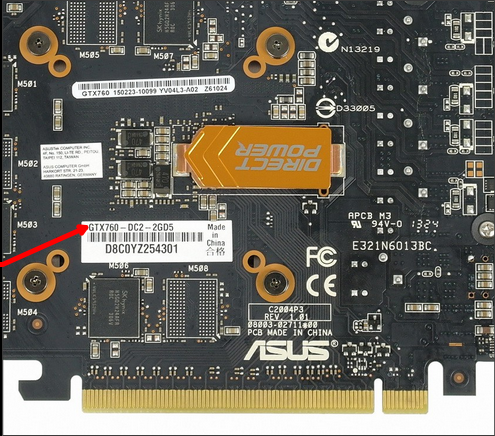
If the computer does not respond to your manipulations, you can try to rearrange the video card to another system unit. If it is built, you will have to refer to the processor specifications.
- Lost branded box from computer or laptop? Carefully examine it for technical specifications.
- We explore the body on the subject of various stickers and marks - they can be placed both from above and bottom of the laptop (the company can be glued to the computer that carried out the assembly).
- Carefully, following the instructions, open the housing. Examine all the marks on the processor (as well as other chips), write them down and "scorch" search engine - this should push you on the model of the motherboard or "whole" device.
- If the system unit was issued assembled by a well-known company (the same applies to laptops) - look for its characteristics on the network or on the manufacturer's website, specifying the marking data.

In particular cases, the video card can be tried to define "on the eye", especially if it refers to modern and popular models. The manufacturers are characteristic of the original and recognizable appearance.

 0
0 498
498








