Using the keyboard
One of the easiest ways is to use hotkeys. They are different for different operating systems and browsers.
- For Windows, Linux, Chrome computers, simultaneously press the Ctrl, Shift, N keys.
- For computers Mac - Command, SHIFT, N.
- For Mozilla browsers, Explorer, Edge clamp the Ctrl, Shift, P keys. When working on Apple brand computers, the Ctrl key is replaced with Command.
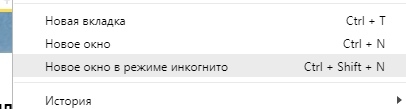
Using the menu
Incognito mode can also be opened through the browser menu. In all browsers, the tab name for its discovery may differ slightly, but will definitely be the word "incognito" or "private". This method is convenient in those moments when the keys are not known in advance.
For Google Chrome browser:
- We open the browser, press the point in the right corner from above.
- After opening the settings, we will need a "New window in incognito" button.
For Yandex Browser:
- Open the browser, press the strips in the right corner from above.
- After opening the settings, we need the incognito mode button.
For the Opera browser:
- Open the browser, click on the browser icon in the upper left corner.
- After opening the menu, use the Create Private Window tab.
For Internet Explorer browser:
- Open the browser, click on the settings. The icon looks like a gear.
- After opening the menu, we will need the "Browsing Inprivate" button.
For Safari browser:
- Open the browser, click on the "File" in the menu.
- After opening the menu, click "New Private Window".
You can also clamp the right mouse right-click and select "Incognito mode" in the field that appears

Incognito mode from a smartphone
On mobile devices in browsers there is also such a function.
For Chrome browsers, Firefox:
- In the browser, press points in the upper right corner.
- We will then need an "incognito tab" or "Incognito mode".
For the Opera browser:
- In the browser, click on the button to open all tabs.
- Choose at the top of the incognito mode. Can fly the left screen.
For Safari browser:
- Open the browser, then all tabs. This icon is located in the bottom corner on the right.
- Select the "Private Access" mode and open the tab already in it using the Plus button.
For Yandex Browser:
- In the open browser in the search bar, click on the icon with three horizontal lines.
- In the field that appears, we need a "new incognito tab."

Incognito mode allows you to maintain your actions only for a browser. Namely, it allows you to hide your history of visits and not remember the entered social networking data and other sites. Nevertheless, your data can also be used by sites or Internet providers.

 0
0 1160
1160