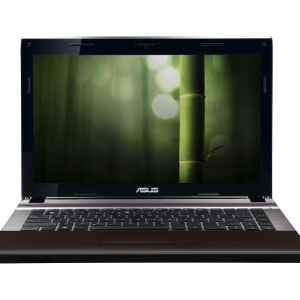
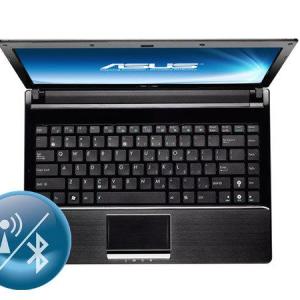
Most modern portable devices support Wi-Fi wireless network connection. Wireless Fidelity is a way to transfer data through a special Wireless LAN channel. The Wi-Fi installation process on the ASUS laptop is not completely difficult and does not take much time.
1
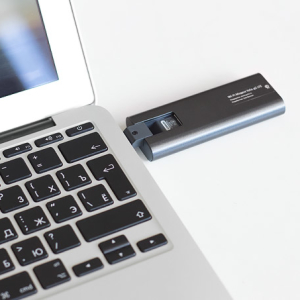
Many laptops come complete with Wi-Fi module. If there is no Wi-Fi module in the laptop, you will need an external adapter that can be bought in a computer store. It looks like a flash drive. To start working, it needs to be connected to the USB port of the laptop. The external Wi-Fi adapter with a button on its enclosure is included. Such an adapter has a significant drawback - the risk of mechanical damage is great.
2
To check the availability of Wi-Fi module, you need to look good for the laptop housing. Under the keyboard or below, a sticker must be present. In the left lower part of the laptop there must be a button responsible for switching on Wi-Fi. To enable Wi-Fi on ASUS laptop, press keys «FN. » and «F12. " Wi-Fi connection icon appears . If pressing the key combination did not lead to the desired result, it is worth checking the drivers.
3
The incorrect installation of drivers can lead to the fact that the wireless connection indicator will be turned on, and the access point is still unavailable. To check the operation of the drivers, you need to open «My computer "And go to" Properties ". In the "Equipment" tab, click on the Device Manager. In the "Network Adapters" section find "Wireless" Wi-Fi or Wireless. A yellow triangle sign with an exclamation mark next to the module name indicates that it is required to reinstall or reinstall the drivers. Install the drivers from the disk or download from the Internet. The only problem with which may have to encounter is to install the drivers several times until the Wi-Fi module earns.
4
To adapter freely find wireless networks, you need to configure automatic reception of the IP address. For Windows XP you should open «Control Panel ", Then" Network Connections ". Select the desired connection, open the "Properties". In the "Components used by this Connection", select TCP / IP and click "Properties". In the window that opens, notice "Get an IP address automatically" and "Get the DNS server address automatically", click "OK".
5
To configure the IP address in Windows 7 and Windows 8, it is recommended to open «Control Panel ", Then" Network Management Center and Common Access. " Select "Changing the adapter parameter", in the window that opens, find the desired network, open the "Properties". Select TCP / IPv4. V "Properties" Mark"Get an IP address automatically"And" get the address of the DNS server automatically ", click"OK».
6
After it turned on Wi-Fi, you must click «Connection with a wireless network in the tray " A list of free networks will appear, including network of nearby users. You can choose any network on which there is no restriction, or enter a login and password in the window of your network.
To enjoy wireless internet, you can connect a laptop to another laptop. Open «Control Panel "," Network and Common Access Management Center ". Then "Managing Wireless Networks", "Add" and "Create a Computer Network".


 0
0 1884
1884